게임 데이터 생성 & 삭제 안내
BIMGO!은 개발자가 운영하는 별도의 회원가입 시스템, 로그인 서버 또는 게임 데이터 서버를 사용하지 않습니다.
Google Play Games Services를 이용하여 사용자의 안전한 클라우드 공간(Saved Games)에 게임 진행 데이터를 생성 및 저장합니다.
1. 게임 데이터 생성 및 연동 방법
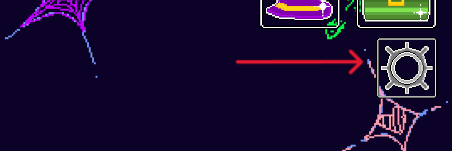
1. 게임 메인 화면에서 설정 버튼을 눌러 설정 패널을 열어주세요.
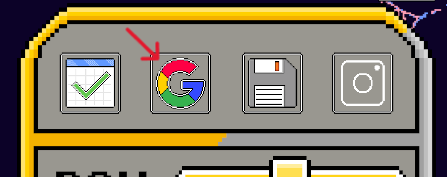
2. 구글 계정 연동 버튼을 눌러 구글 플레이 계정 연동을 먼저 진행해 주세요.
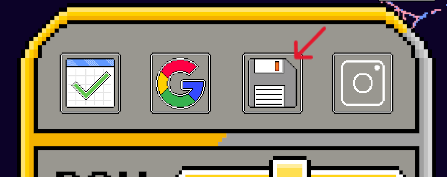
3. 계정 연동이 완료되었다면, 저장/로드 버튼을 눌러 클라우드에 게임 데이터를 안전하게 보관하거나 불러올 수 있습니다.
2. 삭제 대상
삭제 대상은 BIMGO!에서 Google Play Games Services의 Saved Games 기능을 통해 저장한 게임 진행 데이터입니다.
3. 게임 데이터 삭제 방법
Google에서 제공하는 공식 기능을 통해 BIMGO!의 Play 게임즈 데이터를 삭제할 수 있습니다.
아래 Google 공식 안내 페이지에서 '개별 게임 데이터 삭제' 방법을 확인해 주세요.
Google 공식 게임 데이터 삭제 안내
주의: 게임 데이터를 삭제하면 게임 진행 상황이나 업적 등이 완전히 삭제되며 복구할 수 없습니다.
4. Google 계정은 삭제되지 않습니다
중요: Play 게임즈 데이터 삭제는 저장된 게임 데이터를 대상으로 하며, Google 계정 자체를 삭제하는 것은 아닙니다.
5. 삭제 관련 문의
개발자: BIMGO_Dev
회사명: BIMGO
이메일: sandotori54@gmail.com
Game Data Creation & Deletion Guide
BIMGO! does not use a separate account system, custom login server, or private game database.
Game progress is securely created and backed up using Google Play Games Services (Saved Games).
1. How to Create and Link Game Data
1. Tap the Settings button on the main screen to open the options panel.
2. Tap the Google Play link button to sign in and link your Google account first.
3. Once linked, tap the Save/Load buttons to upload or retrieve your cloud save data.
2. Data Subject to Deletion
The data subject to deletion is the game progress saved through Google Play Games Services Saved Games.
3. How to Delete Game Data
You can delete BIMGO! game data using the official management tools provided by Google Play Games.
Please check the official Google support page below for instructions on deleting individual game data.
Google Play Games Data Deletion Guide
Warning: Deleting game data will permanently erase your progress and achievements.
4. Google Account is Not Deleted
Important: Deleting Play Games data only removes the saved game progress and does NOT delete your Google account.
5. Contact Us
Developer: BIMGO_Dev
Company: BIMGO
Email: sandotori54@gmail.com
ゲームデータ作成・削除のご案内
BIMGO!は独自の会員登録システム、ログインサーバー、ゲームデータサーバーを使用していません。
Google Play Games Servicesを利用して、安全なクラウド領域(Saved Games)にゲームデータを保存・同期します。
1. ゲームデータの作成・同期手順
1. メイン画面の設定ボタンを押して、設定パネルを開いてください。
2. Googleアカウント連携ボタンを押し、Playゲームアカウントの連携を完了させてください。
3. 連携完了後、保存/ロードボタンを押すことで、クラウドへのセーブデータ保存および復元が可能です。
2. 削除対象のデータ
削除対象はGoogle Play Games Servicesを通じて保存されたBIMGO!のセーブデータです。
3. データ削除の手順
Googleが提供する公式のデータ管理機能からBIMGO!のゲームデータを直接削除できます。
下記のGoogle公式案内ページより「個別のゲームデータの削除」手順をご確認ください。
Google公式 ゲームデータ削除案内
注意: ゲームデータを削除すると、ゲームの進行状況や実績が完全に削除され復元できなくなります。
4. Googleアカウント自体は削除されません
重要: ここでの削除はPlayゲームに保存されたゲームデータのみが対象であり、Googleアカウント自体が削除されることはありません。
5. お問い合わせ
開発者: BIMGO_Dev
会社名: BIMGO
メール: sandotori54@gmail.com